There’s Power in the Spoken Word
Interact with OmniFocus using Siri AI and Voice Control on macOS
ACCESS KEYS ( Safari: ⌃, Chrome: ⌃⌥ ): “N” = navigation, “C” = close navigation, “U” = accessibility menu
🗣️You’re using your voice with Siri® AI to interact with OmniFocus? Excellent! Using the new Siri there’s so much you can do with your favorite task management application! But… as good as Siri is… it is unable to control the OmniFocus interface and menus. So, how to stay “hands-free” and still use your voice to interact with both Siri and OmniFocus? Simple, have Siri turn on Voice Control (“Siri, turn on Voice Control.”), and install, and use our free library of over 130 voice commands that control the application’s interface AND menu items!
( Jump to Menus Documentation )
| Video: Hands-Free Shopping List |
| Using Voice Control and the menus of OmniFocus 4 to dictate a new shopping list. |
|
|
Custom Voice Commands File
The OmniFocus Custom Voice Commands file contains over 150 of the standard menu items in a single Voice Control property list.
⬇ OmniFocus (v4.9+) macOS 27+ English (v201)
SUPPORTED LOCALES: United States 🇺🇸 · Great Britain 🇬🇧 · Australia 🇦🇺 · Canada 🇨🇦
IMPORTANT: Always create and store a backup copy of your custom Voice Commands, in addition to keeping backup copies of commands sets files such as this one.
Installing Custom Voice Commands
Click THIS LINK to open the Voice Control panel of the Accessibility preferences pane
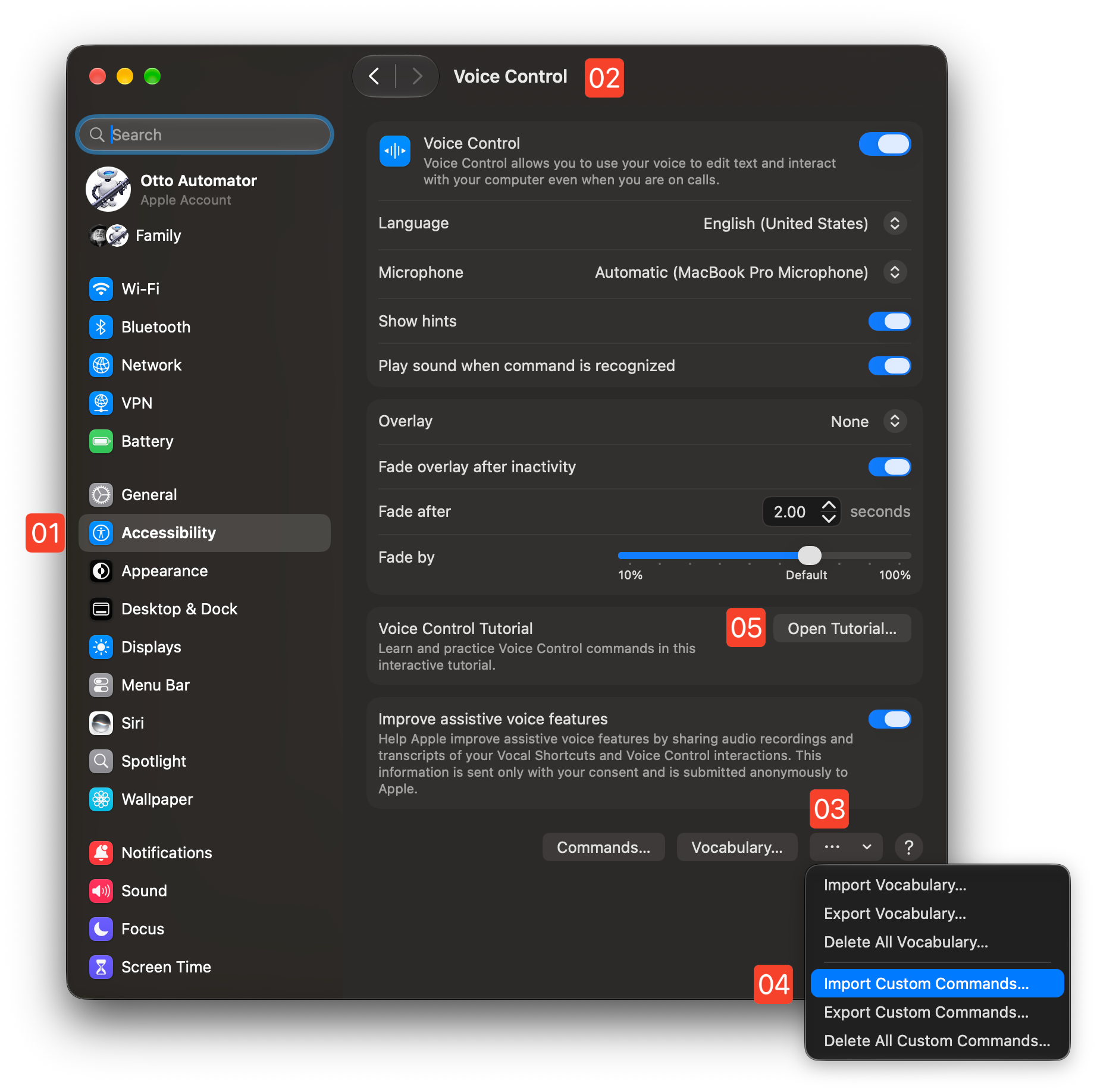
1 Accessibility Preferences • The Accessibility preferences pane in the System Preferences application.
2 Voice Control tab • The Voice Control tab of the Accessibility preferences.
3 Advanced Actions menu • This menu contains options for importing/exporting Voice Control vocabulary and commands.
4 Import Commands • Selecting this option provides the ability to import a Voice Control commands file that contains custom commands.
5 Open Tutorial • Open the interactive Voice Control tutorial app. (see below)
macOS 27: To install a set of Voice Control commands stored in a commands file, first turn off Voice Control. Then, select the “Import Custom Commands…” menu option 4 from the Advanced Actions menu 3 in the Voice Control tab 2 of the Accessibility system preference pane 1 , and select the “.voicecommands” file to import in the forthcoming file picker dialog. The voice commands will automatically be read from the chosen file and installed for you. Turn Voice Control on.
Voice Control Tutorial
🌟🌟🌟 NEW 🌟🌟🌟 The Voice Control Tutorial is an interactive learning tool for quickly and easily getting “up to speed” with Voice Control. In just a few minutes of prompted step-by-step interaction, you become familiar with the Dictation, Text Editing, and Navigation commands built into Voice Control.
To access the Voice Control Guide on a Mac, simply open the Voice Control Preferences in the System Settings app, and press the “Open Tutorial…” button 5 . Press the “Getting Started” collection in the Voice Control Guide window and follow along!
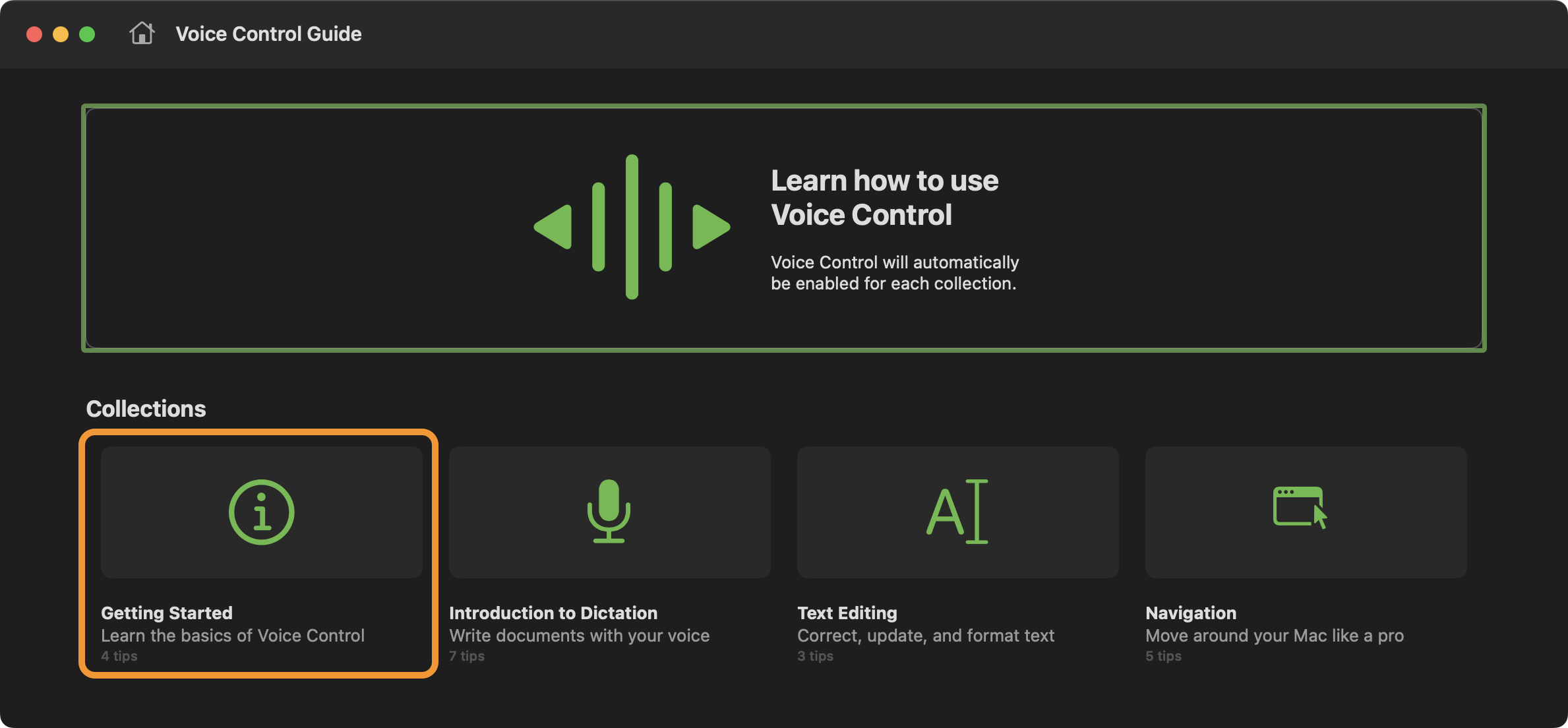
To access the Voice Control Guide on iPhone or iPad, open the Settings app, tap Accessibility > Voice Control > Open Voice Control Guide
Voice Commands for OmniFocus Menus (@)
Here are the possible phrases that may be spoken to execute each of the menu commands:. IMPORTANT: The built-in Voice Control commands for dictation and control also remain available.
For more free custom OmniFocus Voice Commands, powered by Omni Automation, visit the OmniFocus Voice Commands Collection (100+).
Application Menu
- About OmniFocus
- “About OmniFocus”
- Settings…
- “Preferences”
- “Settings”
- Check for Updates…
- “Check for Updates”
File Menu
- New Action
- “New Action”
- “New Task”
- “New Item”
- “Add Item”
- “New List Item”
- “Add List Item”
- New Project
- “New Project”
- New Folder
- “New Folder”
- New Single-Action List
- “New List”
- “New Single Action List”
- New Tag
- “New Tag”
- New Window
- “Open New Window”
- “New Window”
- New Tab
- “Open New Tab”
- “New Tab”
- Quick Open…
- “Quick Open”
- “Show Quick Open”
- Import OmniOutliner Document…
- “Import OmniOutliner Document”
- Export…
- “Export”
- Sync Now
- “Sync Now”
- Show Backups in Finder
- “Show Backups in Finder”
- “Show Backups in the Finder”
- Rebuild Database
- “Rebuild Database”
- Compact Database
- “Compact Database”
Edit Menu
- Copy as Link
- “Copy as Link”
- Copy as TaskPaper
- “Copy as TaskPaper”
- Delete
- “Delete”
- Deselect All
- “Deselect All”
- Duplicate
- “Duplicate”
- Edit Note
- “Edit Note”
- Convert to Project
- “Convert to Project”
- Status ▸ Active
- “Status Active”
- “Activate This”
- “Mark Active”
- Status ▸ On Hold
- “Status On Hold”
- “Put This On Hold”
- “Place This On Hold”
- Status ▸ Completed
- “Status Completed”
- “Complete This”
- “Mark Completed”
- Status ▸ Dropped
- “Status Dropped”
- “Drop This”
- “Mark Dropped”
- Mark Reviewed
- “Mark Reviewed”
- Add Forecast Tag
- “Add Forecast Tag”
- Set Flag
- “Set Flag”
- “Flag This”
- Clear Flag
- “Clear Flag”
- Attach File…
- “Attach File”
- Add Link…
- “Add Link”
- Insert Time Stamp ▸ Short Date
- “Insert Short Date”
- Insert Time Stamp ▸ Short Date and Time
- “Insert Short Date and Time”
- Insert Time Stamp ▸ Time
- “Insert Time”
- Insert Time Stamp ▸ Long Date
- “Insert Long Date”
- Insert Time Stamp ▸ Long Date and Time
- “Insert Long Date and Time”
- Find ▸ Go to Search Field
- “Go to Search Field”
- Find ▸ Search Here
- “Search Here”
- Find ▸ Search Remaining
- “Search Remaining”
- Find ▸ Search Everything
- “Search Everything”
Organize Menu
- Clean Up
- “Clean Up”
- Add Inside
- “Add Inside”
- Add Outside
- “Add Outside”
- Move ▸ Move Down
- “Move Item Down”
- Move ▸ Move Right
- “Move Item Right”
- Move ▸ Move Up
- “Move Item Up”
- Move ▸ Move Left
- “Move Item Left”
- Indent
- “Indent”
- Outdent
- “Outdent”
- Group
- “Group”
- Ungroup
- “Ungroup”
- Sort Once ▸ By Name
- “Sort By Name”
- “Sort Once By Name”
- Sort Once ▸ By Status
- “Sort By Status”
- “Sort Once By Status”
- Sort Once ▸ By Date Added
- “Sort By Date Added”
- “Sort Once By Date Added”
- Sort Once ▸ By Date Completed
- “Sort By Date Completed”
- “Sort Once By Date Completed”
- Sort Once ▸ By Date Due
- “Sort By Date Due”
- “Sort By Due Date”
- “Sort Once By Date Due”
- “Sort Once By Due Date”
- Sort Once ▸ By Defer Date
- “Sort By Defer Date”
- “Sort By Deferment Date”
- “Sort Once By Defer Date”
- “Sort Once By Deferment Date”
- Sort Once ▸ By Date Dropped
- “Sort By Date Dropped”
- “Sort Once By Date Dropped”
- Sort Once ▸ By Title
- Sort By Title
- Sort Once By Title
- Sort Once ▸ By Planned Date
- Sort By Planned Date
- Sort Once By Planned Date
View Menu
- Expand All
- “Expand All”
- Collapse All
- “Collapse All”
- Expand Items
- “Expand Items”
- Collapse Items
- “Collapse Items”
- Expand Item
- “Expand Item”
- Collapse Item
- “Collapse Item”
- Show All Notes
- “Show All Notes”
- Show Note
- “Show Note”
- Hide All Notes
- “Hide All Notes”
- Hide Note
- “Hide Note”
- Unfocus
- Stop Focus
- Focus Off
- Unfocus
- Show in Tags
- “Show in Tags”
- Hide in Tags
- “Hide in Tags”
- Show Sidebar
- “Show Sidebar”
- “Open Sidebar”
- “Left In”
- Hide Sidebar
- “Hide Sidebar”
- “Close Sidebar”
- “Left Out”
- Show Inspector
- “Show Inspector”
- “Right In”
- Hide Inspector
- “Hide Inspector”
- “Right Out”
- Go to Sidebar
- “Go to Sidebar”
- Go to Outline
- “Go to Outline”
- Go to Inspector
- “Go to Inspector”
- Show View Options
- “Show View Options”
- Hide View Options
- “Hide View Options”
- Show Tab Bar
- “Show Tab Bar”
- Hide Tab Bar
- “Hide Tab Bar”
- Show All Tabs
- “Show All Tabs”
- Exit Tab Overview
- “Exit Tab Overview”
- “Exit Overview”
- Show Toolbar
- “Show Toolbar”
- Hide Toolbar
- “Hide Toolbar”
- Customize Toolbar…
- “Customize Toolbar”
- Enter Full Screen
- “Enter Full Screen”
- Exit Full Screen
- “Exit Full Screen”
Perspectives Menu
- Show Perspectives
- “Show Perspectives”
- Hide Perspectives
- “Hide Perspectives”
- Add Perspective…
- “Add Perspective”
- Inbox
- “Inbox”
- “Show Inbox”
- Projects
- “Projects”
- “Show Projects”
- Tags
- “Tags”
- “Show Tags”
- Forecast
- “Forecast”
- “Show Forecast”
- Flagged
- “Flagged”
- “Show Flagged”
- Review
- “Review”
- “Show Review”
- Completed
- “Completed”
- “Show Completed”
- Changed
- “Changed”
- “Show Changed”
- Nearby
- “Nearby”
- “Show Nearby”
Format Menu
- Copy Style
- “Copy Style”
- Paste Style
- “Paste Style”
- Clear Style
- “Clear Style”
- Simplify Style
- “Simplify Style”
- Show Fonts
- “Show Fonts”
- Hide Fonts
- “Hide Fonts”
- Show Colors
- “Show Colors”
- Hide Colors
- “Hide Colors”
- Bigger
- “Make Bigger”
- “Increase Size”
- “Increase Font Size”
- Smaller
- “Make Smaller”
- “Decrease Size”
- “Decrease Font Size”
Automation Menu
- Show Console
- “Show Console”
- Clear Console
- “Clear Console”
- Hide Console
- “Close this window”
- API Reference
- “API Reference”
- “Open Scripting Dictionary”
- Configure…
- “Configure Automation”
Window Menu
- Zoom
- “Zoom Window”
- Tile Window to Left of Screen
- “Tile Window to Left of Screen”
- Tile Window to Right of Screen
- “Tile Window to Right of Screen”
- Replace Tiled Window
- “Replace Tiled Window”
- Show Previous Tab
- “Show Previous Tab”
- Show Next Tab
- “Show Next Tab”
- Move Tab to New Window
- “Move Tab to New Window”
- Merge All Windows
- “Merge All Windows”
- Show Quick Entry
- “Quick Entry”
- “Show Quick Entry”
- Main Window
- “Main Window”
- Attachment List
- “Attachment List”
- Bring All to Front
- “Bring All to Front”
Special Commands
- Show Available Commands
- “Open Menu Commands”
- “Show Me What to Say”
- Show Inspector & Sidebar
- “Sides In”
- Hide Inspector & Sidebar
- “Sides Out”
- Press Escape Key
- “Press Escape”
- “Stop Edit”
- “Finish Edit”
- “Exit Edit”